youtube shorts safe zone tooltiktok safe zone previewvertical video safe zone guide9:16 video overlay checkerinstagram reels safe zone overlay
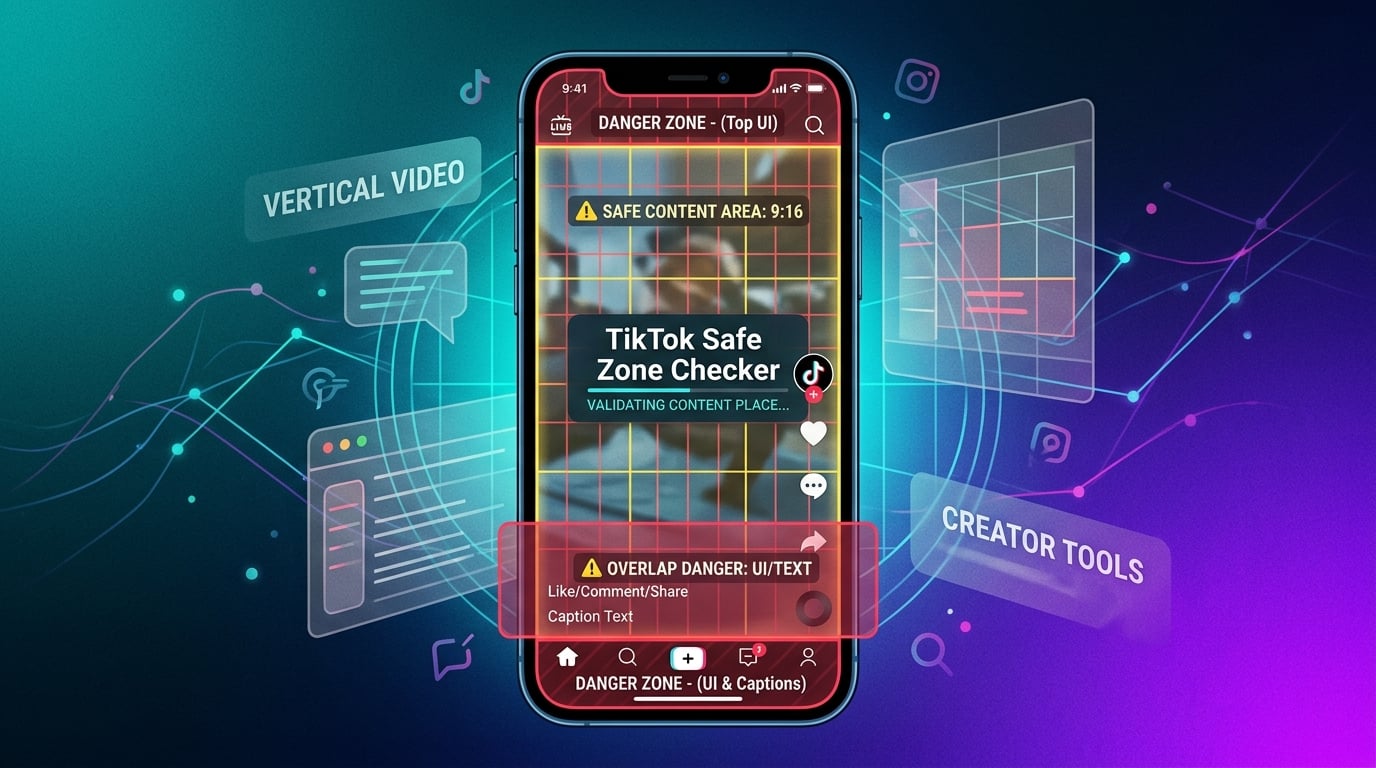
Making 9:16 vertical videos is easy. Making sure your text doesn’t get eaten by platform UI? That’s the hard part.
You’ve been there. You spend hours polishing a hook, only to post it and see the caption vanish behind TikTok’s like button or Instagram’s music ticker. It kills engagement instantly. Viewers can’t read your call-to-action, so they swipe away.
Stop guessing. Start checking.
The tiktok safe zone preview solves this in seconds. It lets you see exactly where TikTok, Instagram Reels, and YouTube Shorts place their buttons, text, and overlays. You get a clear picture of where it’s safe to put your logos, stickers, and subtitles. No more accidental text collisions.
What Is a Safe Zone in Vertical Video?
Think of the safe zone as the "no-fly zone" for your critical content. It’s the specific area within a 1080 x 1920 frame where your text and logos remain visible. Outside that area? It’s a minefield of platform-specific UI components.
Why Your Text Gets Covered
It’s not just one button. It’s a stack of them.
- Dynamic UI Bars: TikTok and Reels have bars that can shift slightly depending on the device. One pixel off, and your headline is gone.
- High-Opacity Overlays: Those like, comment, and share icons on the right? They are solid white. If your text sits under them, it disappears.
- Platform Differences: A 9:16 video isn’t just 9:16. The safe area for TikTok is different from Instagram, which is different from YouTube Shorts. Designing for one without checking the others is a recipe for cut-off captions.
How to Use the Safe Zone Preview Tool
This tool runs entirely in your browser. No downloads. No account sign-ups. No data leaving your device. It’s fast and private.
Step-by-Step Setup
Here is how to get from blank canvas to verified safe layout.
| Step | Action | Result |
|---|---|---|
| 1 | Open the tool and drop your video thumbnail or frame into the canvas. | The preview loads at full 1080 x 1920 resolution. |
| 2 | Select your target platform (TikTok, Instagram Reels, or YouTube Shorts). | The exact UI overlay for that platform appears instantly. |
| 3 | Add text boxes or logos by clicking Add Element. Drag them around. | The live collision detector flashes red if you touch a UI element. |
| 4 | Export a transparent PNG guide. | You get a file ready to drop into your editing software. |
👉 To use the Social Media Safe Zone Preview Tool, just follow those four steps. You’ll have a perfect overlay in under a minute.
Getting That PNG Export
- Arrange all your elements inside the green safe area.
- Click Export PNG.
- You’ll download a 1080 x 1920 file with a transparent background and a red outline marking the danger zones.
- Drag this into CapCut, Adobe Premiere Pro, or DaVinci Resolve.
- Place it on the top track. Use it as a ruler for your actual text layer. Then, hide or delete the guide track before you export your final video.
Comparing Safe Zones: TikTok vs. Instagram vs. YouTube
You can’t use a one-size-fits-all template. Here are the actual pixel measurements you need to know.
| Platform | Top UI Height | Bottom Rail Height | Right-Side Width | Recommended Safe Area |
|---|---|---|---|---|
| TikTok | 180 px | 360 px | 160 px | 180px down to 1460px vertical; 0 to 1280px horizontal |
| Instagram Reels | 200 px | 340 px | 150 px | 200px down to 1440px vertical; 0 to 1280px horizontal |
| YouTube Shorts | 150 px | 300 px | 140 px | 150px down to 1470px vertical; 0 to 1280px horizontal |
The Key Differences
- TikTok: The bottom rail is the tallest. Why? Because of the prominent audio disc and the "follow" button. Give your bottom captions plenty of room.
- Instagram Reels: The audio title sits on the left. This pushes your usable vertical space slightly higher than TikTok.
- YouTube Shorts: The bottom area is the tightest. You have less room for captions before they hit the channel header and share buttons.
Watch Out For These Specific Elements
- TikTok: The "sound disc" (bottom-left), the "follow" button (top-right), and live viewer counts.
- Instagram Reels: The "Reel title" bar at the top and the music sticker at the bottom-left.
- YouTube Shorts: The "Subscribe" button (top-right) and the "Shorts" label (bottom-center).
Common Problems and Quick Fixes
Text Vanishing Behind the Interaction Rail
The Problem: Your subtitles disappear behind the like/comment/share buttons on TikTok.
The Fix: Keep all critical text above the 40% mark from the top of the screen. In pixels, that means staying higher than 768px. And avoid the bottom 360px entirely.
Hooks Getting Cut Off
The Problem: Your opening hook gets truncated on Instagram because the audio title overlays it.
The Fix: Position your hook lines between 45% and 55% of the vertical space. Also, leave at least 80px of margin from the left edge to clear the audio text.
Bonus: Speed Up Your Workflow
Share Guides with QR Codes
You don’t want to email PNG files to every team member. Instead, generate a QR code that links directly to your exported guide. Visit the QR Code Generator, paste your file URL, and print the code for your project brief.
Batch Check Previews
Making ten variations of a video? Don’t open ten browser tabs manually. Create a CSV of your preview URLs and feed them into the URL Opener. It launches them all at once. You can scan through your options instantly.
What Is This Tool, Exactly?
The Social Media Safe Zone Preview Tool is a free, privacy-first utility. It simulates the exact UI of major short-form platforms on a 9:16 canvas.
- Interactive Simulation: Drag, resize, and test text in real-time.
- 2026 UI Overlays: We keep the layouts up to date so you’re not designing against old menus.
- One-Click Export: Get a transparent PNG ready for your NLE (Non-Linear Editor).
- AI Hook Auditor: A bonus feature that scores your hook’s curiosity factor and suggests viral rewrites.
Step-by-Step: From Upload to Export
- Upload your video frame or thumbnail.
- Choose the platform overlay (TikTok, Reels, or Shorts).
- Drag your text and graphics into the highlighted safe zone.
- Export the PNG and drop it into your editing suite.
Technical Specs That Matter
| Metric | Value | Why It Matters |
|---|---|---|
| Resolution | 1080 x 1920 | Matches native vertical video standards. |
| Export Size | ≤ 1 MB | Fast downloads, no storage bloat. |
| Collision Detection | < 0.2s | Real-time feedback as you move elements. |
| Compatibility | Chrome, Edge, Firefox, Safari | Works on any modern device, no plugins. |
| Privacy | 100% Client-Side | Your files never leave your browser. |
Why Use This Over Static Templates?
| Feature | SmartToolverse Tool | Competitor A (Static PDF) | Competitor B (Old Template) |
|---|---|---|---|
| Interactive | ✅ Drag-and-drop with live alerts | ❌ Static image | ❌ Static image |
| Multi-Platform | ✅ TikTok, Reels, Shorts (2026 UI) | ❌ TikTok only (2021) | ❌ TikTok only (2021) |
| Export | ✅ One-click transparent PNG | ❌ Manual Photoshop work | ❌ Manual Photoshop work |
| AI Hook Audit | ✅ Scores and rewrites hooks | ❌ None | ❌ None |
| Cost/Privacy | ✅ Free, No Account, No Ads | ❌ Sign-up required | ❌ Sign-up required |
The Bottom Line
- Instant: No installs.
- Accurate: Updated for 2026 UI changes.
- Free: No subscriptions, no tracking.
- Ready: Export directly to your editor.
Stop losing viewers to hidden text. Try the free tiktok safe zone preview now and fix your layout in minutes.
Related Tools
Explore these complementary browser utilities to streamline your everyday calculations:
- QR Code Generator: Free online browser utility on SmartToolverse.
- URL Opener: Free online browser utility on SmartToolverse.
- Age Calculator: Free online browser utility on SmartToolverse.
Key Concepts & Search Focus
To provide comprehensive coverage, this guide integrates direct insights for:
- instagram reels safe zone overlay: Practical methodologies and best-practice workflows incorporated into our Social Media Safe Zone Preview Tool (9:16 Vertical Video).
- youtube shorts safe zone tool: Practical methodologies and best-practice workflows incorporated into our Social Media Safe Zone Preview Tool (9:16 Vertical Video).
- vertical video safe zone guide: Practical methodologies and best-practice workflows incorporated into our Social Media Safe Zone Preview Tool (9:16 Vertical Video).
- 9:16 video overlay checker: Practical methodologies and best-practice workflows incorporated into our Social Media Safe Zone Preview Tool (9:16 Vertical Video).
Frequently Asked Questions
Q1: What are the exact safe zone dimensions for 1080x1920 video?
A: For TikTok, keep critical elements at least 180px from the top, 360px from the bottom, and 160px from the right edge. Instagram Reels and YouTube Shorts have slightly different margins. However, if you stay within the central 80% of the frame, your content will be safe on all three platforms.
Q2: Why do my subtitles disappear on TikTok and Reels?
A: Both platforms draw high-contrast UI components (buttons, audio pills, usernames) directly over the video. If your subtitles are in the bottom third or under the right-side buttons, they get covered. Position your subtitles between 40% and 55% of the vertical height and keep them away from the extreme left and right edges.
Q3: Can I use the exported PNG in CapCut or Premiere Pro?
A: Yes. Click Export 1080x1920 PNG Guide in the tool. Then, drag that file onto the top track of your timeline in CapCut, Adobe Premiere Pro, or DaVinci Resolve. Use the red outline as a guide to place your actual text. Once you’re happy with the alignment, hide or delete the guide track before rendering your final video.
Q4: Is it safe to use this with confidential brand assets?
A: Absolutely. The tool processes everything locally in your browser. No files are uploaded to a server, and no data is stored. Your assets stay 100% private and secure.
Q5: Do the UI overlays stay up to date?
A: Yes. The SmartToolverse team monitors platform UI changes weekly. When TikTok or Instagram updates their buttons or bars, we push an update automatically. You are always testing against the latest 2026 layouts.
Get Started Today
Create flawless 9:16 videos that look perfect on every feed. Visit SmartToolverse for this and dozens of other free online utilities, and start using the Social Media Safe Zone Preview Tool to future-proof your short-form content.
Why do my subtitles get covered up on TikTok and Instagram Reels?
Native platform interfaces draw high-opacity buttons, account handles, caption descriptions, and audio track titles directly over your video. Centering your text vertically (between 40% and 55% from the top) ensures that both mobile platforms display your text clearly without obstruction.
Can I import the generated PNG safe zone template into CapCut or Premiere?
Yes. Click 'Export 1080x1920 PNG Guide' to download a transparent PNG overlay. Drag this file onto the top video track in CapCut, Adobe Premiere Pro, or DaVinci Resolve to align your titles, then hide or delete the track before exporting your final video.
Is my uploaded video frame saved on your servers?
No. When you upload an image frame or video screenshot, it is processed 100% locally in your device's browser memory using client-side JavaScript FileReader. No files or media are ever uploaded to external servers.
Try Our Smart Tools
Put what you've learned into practice with our suite of AI-enhanced tools and smart calculators.